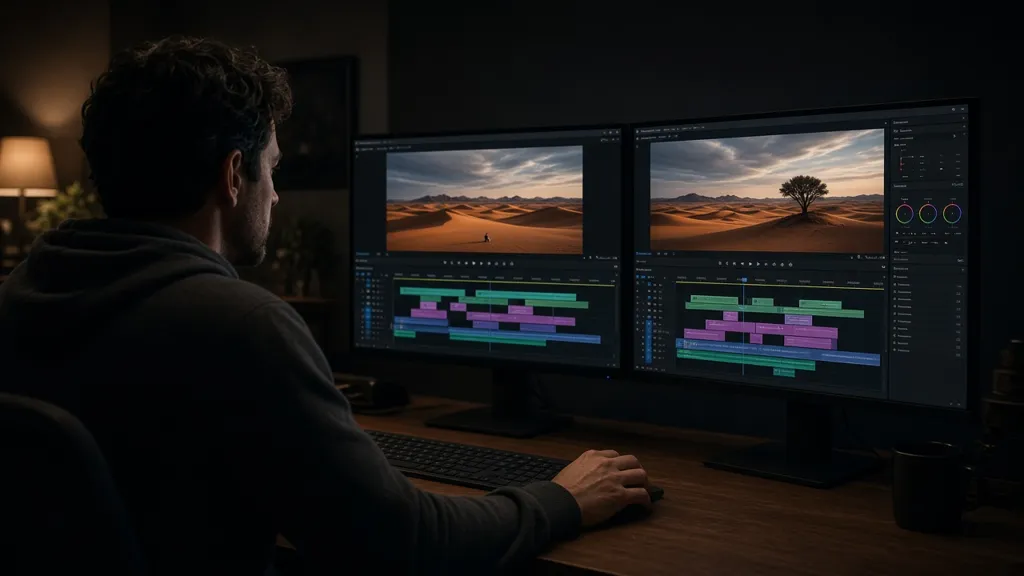
How to use Runway: step-by-step tutorial
AI video with Runway: credit math for Gen-4.5, real plan prices, rollover rules, consent and shot recipes you can copy today.
At a glance
Is Runway right for this job?
Use Runway for
- Product b-roll and social clips
- Animating still photos
- Storyboard previews
- Extending short footage
- Mood films for pitches
Think twice for
- Realistic video of real people without consent
- Long scenes needing perfect continuity
- On-screen text (add it in an editor)
- Big batches before testing
Get set up: step by step
Basics
What it is
Runway is an AI video tool: generate clips from text or images, extend and edit footage, and use models like Gen-4.5. Everything runs on credits. Gen-4.5 costs 12 credits per second of video, so a 10-second clip is 120 credits (runway.com/pricing).
Why this step matters: Knowing what it is good and bad at stops you using it for jobs where it will fail quietly.
Setup
Step 1: Get the official app
- Start from runway.com or the official app.
- Sign up; the free plan gives 125 one-time credits to test.
- Open Billing to see your credits before generating.
Why this step matters: Copycat apps and unofficial installers are common; starting from the official source protects your account and data.
Setup
Step 2: Plans, limits and costs
- Free: 125 credits, one time.
- Standard: $12/month billed yearly ($15 monthly), 625 credits a month.
- Pro: $28/month yearly ($35 monthly), 2,250 credits.
- Max: $76/month yearly ($95 monthly), 9,500 credits.
Gen-4.5 uses 12 credits per second. Standard and Pro credits don’t roll over; Max rolls over one month. Purchased credits never expire (minimum 1,000) (runway.com/pricing, checked Oct 30, 2026).
Why this step matters: Paying for features you don't use is the most common waste. Knowing the limits first tells you if the free tier is enough.
Real things to do with Runway

Product b-roll
Animate a product photo into a short clip for social.
Slow orbit around this sneaker on a white pedestal, soft studio light, 5 seconds.
Animate a landscape photo
Bring a still photo to life with gentle motion.
Animate this photo: clouds drifting, grass moving in a light breeze, camera still.
Storyboard a short
Generate each shot short, then edit together.
Shot 1: wide shot of a lighthouse at dusk, waves crashing, slow push-in, 5 seconds.
Real estate teaser
Smooth camera moves through stills of a home.
Slow dolly forward through this living room photo, warm evening light.
Music video mood
Abstract visuals timed to a track.
Abstract ink swirling in water, deep blues and gold, slow motion, 5 seconds.
Class explainer visual
Short visuals for lessons.
A volcano erupting in a stylized educational animation, side view, 5 seconds.The 5-part prompt that works in Runway
Most weak answers come from weak instructions, not a weak model. Before you send anything important to Runway, check that your message has these five parts. It takes thirty seconds and saves several rounds of “that’s not what I meant.”
- Situation. Who you are and why you are asking. “I run a two-person bakery” changes every answer that follows.
- Task. One clear verb: draft, compare, summarize, fix, plan, explain. If you have three tasks, send them as three steps.
- Inputs. Paste or attach the material it should use, and say what to ignore. Name the file and the pages if it is long.
- Format. Length, structure and tone: “a table with 4 columns”, “under 150 words”, “plain English, no jargon”.
- Checks. Tell it how you will judge the answer: “give a source link for every number”, “say unknown instead of guessing”, “list your assumptions first”.
Save the version that works. In Runway the natural home for reusable instructions is one project per video with saved prompts and references, so you never type the same context twice.
Go further: steps continued
Use
Step 3: Your first real task
Start with a short clip so you don’t burn credits. Describe camera, subject and light:
Slow push-in on a steaming cup of coffee on a wooden cafe table, morning window light, shallow depth of field, 5 seconds.Why this step matters: A prompt with situation, task and format gets a usable answer first time, so you learn what the tool can actually do.
Setup
Step 4: Privacy
- Don't paste passwords, ID numbers, card numbers or other people's private details.
- Assume the company can read and keep your chats unless its official policy says otherwise.
- For health, money or legal decisions, confirm with a professional or an official source.
- Don’t generate realistic video of real people without consent.
- Label AI-generated video where your platform requires it.
Why this step matters: Anything you paste may be stored and read. Deciding what never goes in is easier than undoing a leak.
Mistakes
Mistakes
- Generating 10-second clips before testing 5-second ones.
- Forgetting Standard and Pro credits don’t roll over.
- Using real people’s likeness without consent.
- Not checking hands, faces and text in every frame.
Why this step matters: Knowing how it typically fails tells you where to look when you review its work.
A good session, start to finish
Decide what “done” looks like
Write one sentence describing the finished result before you open the chat: “a one-page plan I can send to my landlord by Friday.” If you cannot describe it, the bot cannot hit it.
Give context once, in the right place
Put standing facts about you, your business or your project where {name} keeps them between chats, instead of pasting them into every message.
Ask for a draft, then steer
Take the first answer as a rough draft. Reply with specific edits (“shorter”, “cut the second option”, “use our real prices”) rather than starting over.
Check the parts that matter
Open the source behind every number, name, date and quote you will reuse. For files, spot-check two page references. For code, run it.
Save what worked
Copy the final prompt into a notes file or saved instructions. Next time the same job takes one message instead of ten, and you spend fewer credits doing it.
Your first week with Runway
How to spot a wrong answer
Warning signs
- It gives an exact number, date or quote with no link, or with a link that does not contain it.
- It agrees with everything you say, including a wrong assumption you slipped in to test it.
- The answer is fluent but vague: lots of “generally” and “it depends” and no specifics you can act on.
- It claims to have done something (sent, saved, booked, run) without a link, ID or file you can open.
- Two answers to the same question, asked in fresh chats, disagree on a fact.
- It names a setting, menu or plan feature you cannot find. Apps change their menus often, so check the official help pages.
What to do
Open the source and find the exact sentence. Ask Runway to separate what it checked from what it assumed. Re-ask in a fresh chat with the source attached. If it still cannot back the claim up, treat it as unknown and use the official page instead.
None of this means the tool is bad. It means you are the editor, and editors check.
Power-user tips
At 12 credits/second, short tests save a lot.
Start prompts with the camera move.
Reuse the same reference image across shots.
Add titles in your editor.
Only Max rolls over one month; use credits monthly.
Purchased credits never expire (min 1,000).
Privacy and safety with Runway
Don’t generate realistic footage of real people without consent, and label AI video where platforms require it.
- Never paste passwords, API keys, one-time codes, full card numbers or government ID numbers into any chat.
- Remove other people’s names, addresses and account details from files before you upload them, unless you have their permission and a reason.
- Open the privacy or data-controls settings in your first week and decide whether your chats may be used to improve models.
- Use the account your employer approved for work material. A personal plan follows the consumer terms, not your company’s contract.
- For health, legal, tax or money decisions, use the bot to prepare questions, then confirm with a professional or an official source.
Runway or another bot?
| If you need… | Pick | Why |
|---|---|---|
| AI video clips | Runway | Built for generated and edited video. |
| AI images | Midjourney or Canva AI | Stills, not motion. |
| Narration | ElevenLabs | Voice for your video. |
| Music | Suno | Soundtracks from prompts. |
Our editorial judgment, not a benchmark. Try your own real task in two bots before you pay for either.
Questions people ask
Is Runway free?
The free plan gives 125 credits, one time (runway.com/pricing, checked Oct 30, 2026).
How much are paid plans?
Standard $15/month ($12 billed yearly) with 625 credits; Pro $35 ($28) with 2,250; Max $95 ($76) with 9,500.
How many credits does a clip cost?
Gen-4.5 costs 12 credits per second, so 10 seconds = 120 credits.
Do credits roll over?
Standard and Pro: no. Max: one month. Purchased credits never expire.
Minimum credit purchase?
1,000 credits.
Can I use real people?
Only with their consent.
Why do hands look wrong?
A common AI video failure; regenerate or reframe.
Is there an API?
Yes, documented on Runway’s developer pages, priced separately.
Words you will see
The Runway quiz, first-week checklist and cost calculator now have their own page.
Where these facts come from
Checked Oct 30, 2026. Plans change, so confirm on the official page before you pay.
Next: Runway lessons →